
The first thing you should do, as the Administrator or Head of Training of the ATO, is creating the ATO in Best Pilot by completing its details.
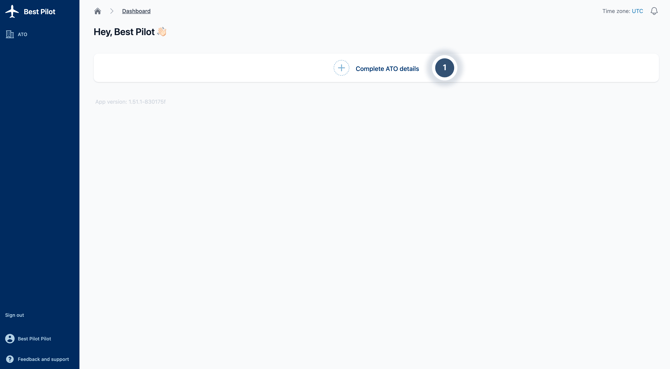
1. On the Home page, select the Complete ATO details button (1).
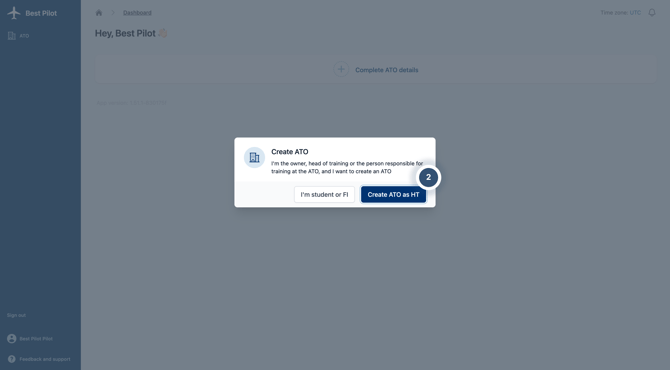
2. Next, select the Create ATO as HT button (2).
3. Fill out the form with your ATO's basic information and details.
- Official name (3)
- Currency (4) - select the currency your ATO will use for billing, invoicing, and account balances. This field is required.
- Phone number and email address (5)
- Trading name (6) - if your ATO operates under a different name than its official one, enter it here. This is optional and can be left blank if your trading name matches your official name.
- ATO certificate number (7)
- Minimum account balance to book resources (8) - set the minimum balance a pilot's account must have in order to book resources (e.g., aircraft, simulators). This field is required, unless you tick Don't check pilots' account balances when booking, which disables the balance check entirely.
- Instructor allowed time for modification after training was registered (9) — set how much time an instructor has to make changes to a training session after it's been registered. Select Disabled if you don't want to allow any post-registration modifications.
- Time zone used in notifications (10) — choose the time zone that will be used for notifications sent within your ATO (e.g., booking confirmations, reminders).
- Link (11) — under Library / Resources, paste a link to the location where your organization's documents are stored (e.g., a shared drive or internal library), so it's easily accessible to everyone in your organization.
- Safety manager's email address (12) - under Safety Management, enter the email address that will receive reports submitted through your organization's SMS (Safety Management System) form. In the next step, you'll receive a link to this form that you can place on your website.
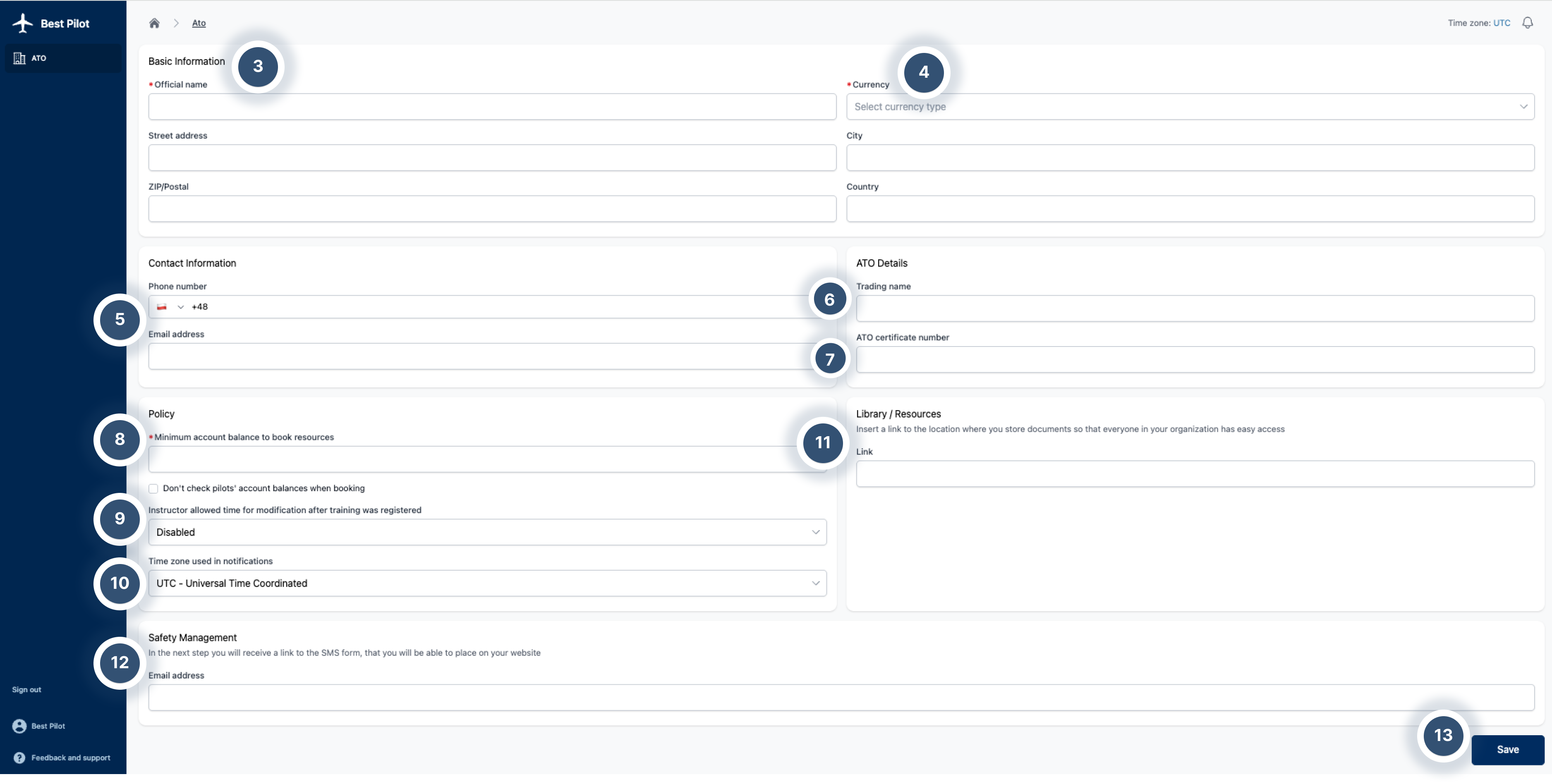
7. Once you have finished filling out the form, select the Save button (13).
8. The data you have inserted can always be changed by using the Edit button located next to the corresponding section.
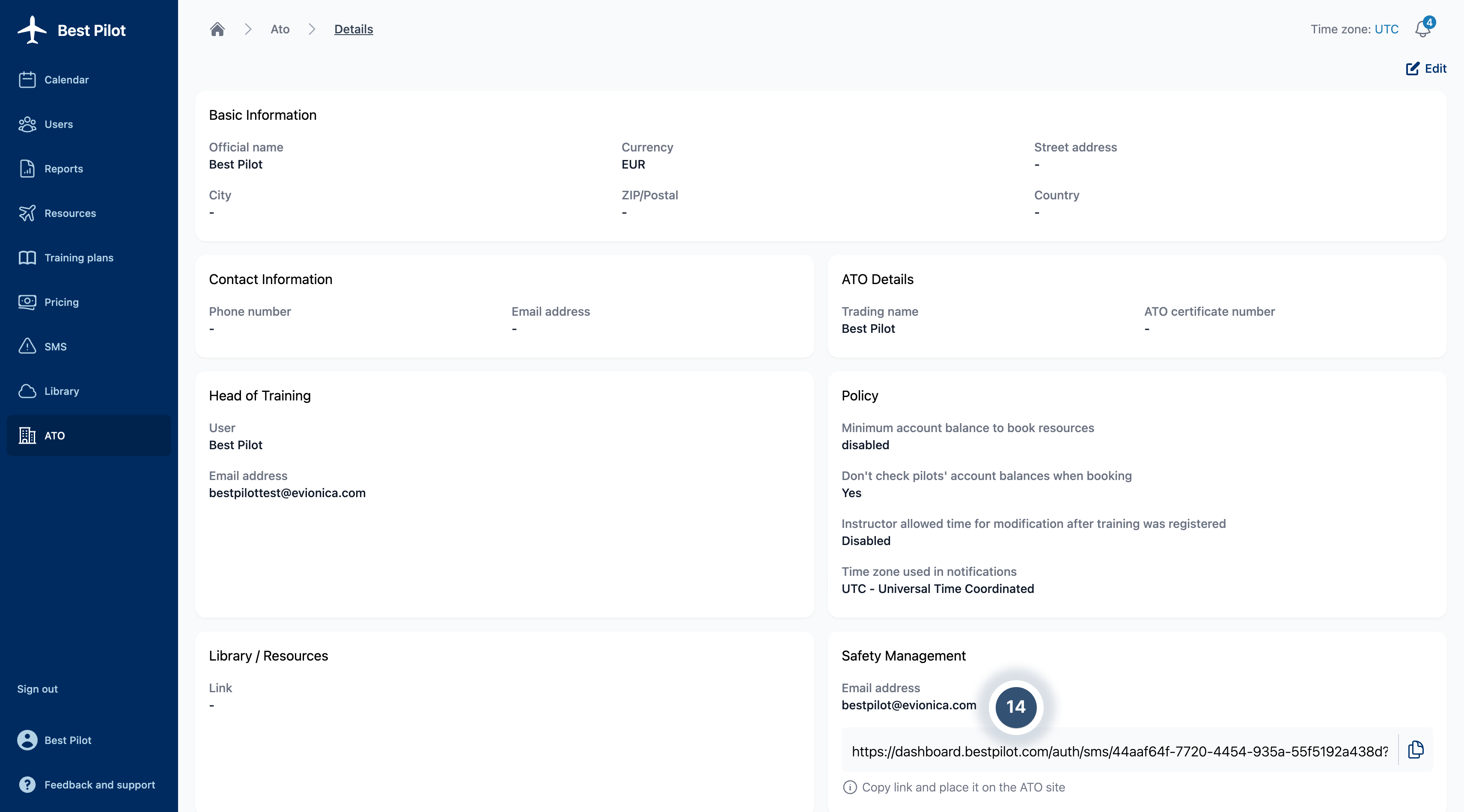
9. Your ATO is now configured in Best Pilot. Now, you can use other features of the platform.