Follow the sequence to learn how to add an aircraft to the Best Pilot environment.
1. Sign as Administrator to your Best Pilot.
1. Sign as Administrator to your Best Pilot.
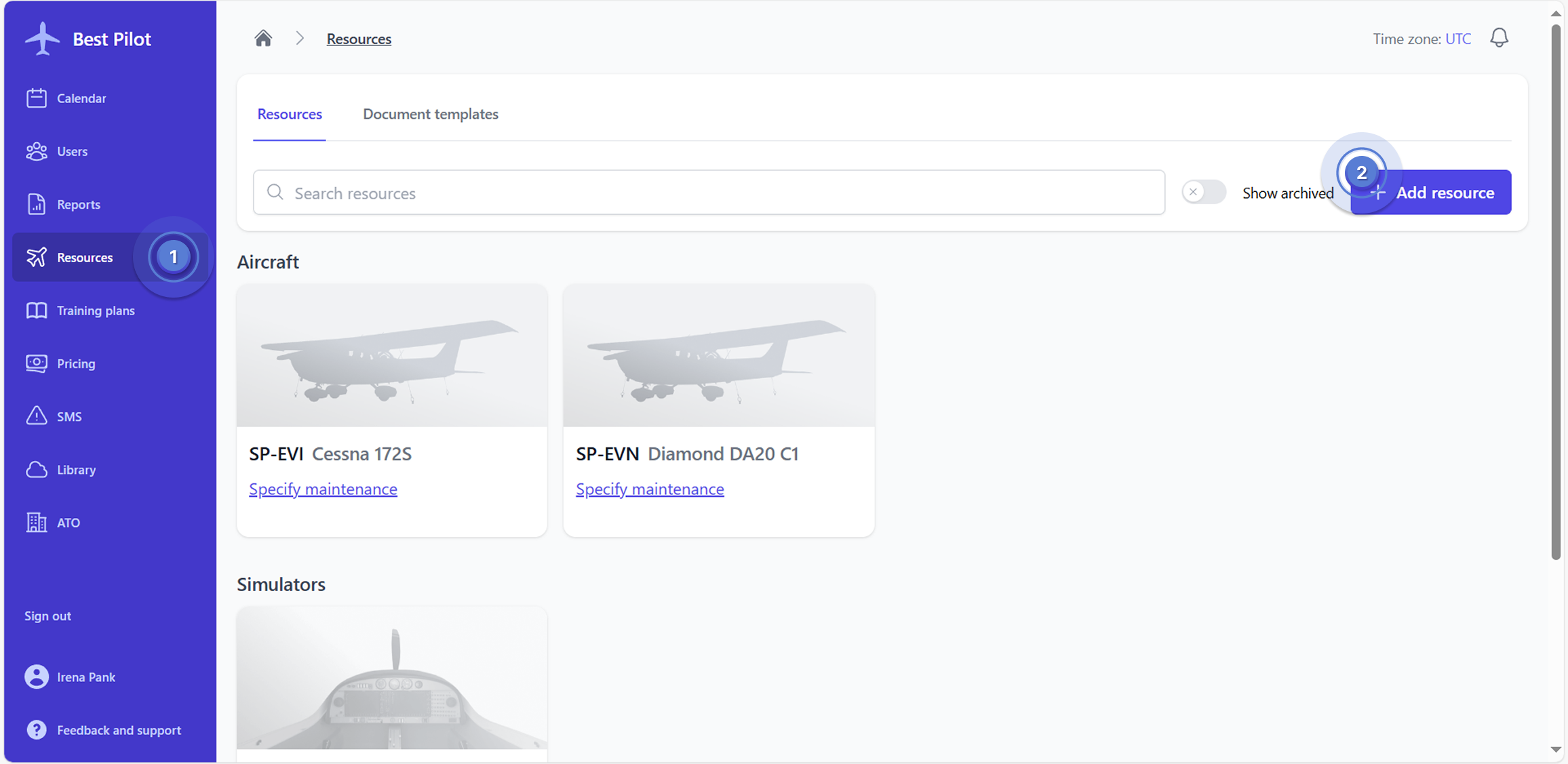
2. Select the
Resources module from the left panel. (1)
4
. The resource addition
form will appear on the right side of the page.
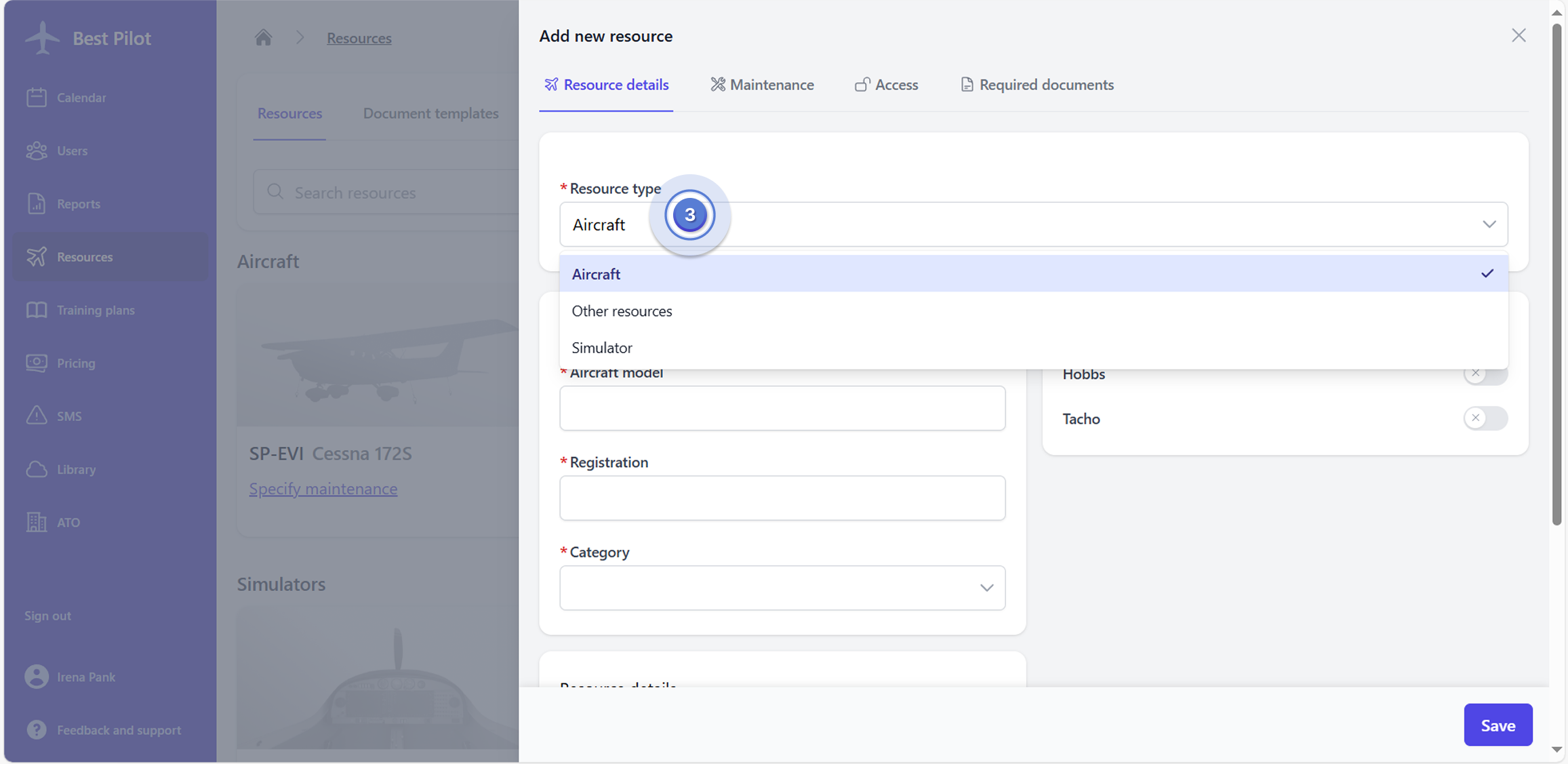
5. From the Resource type dropdown select Aircraft. (3)
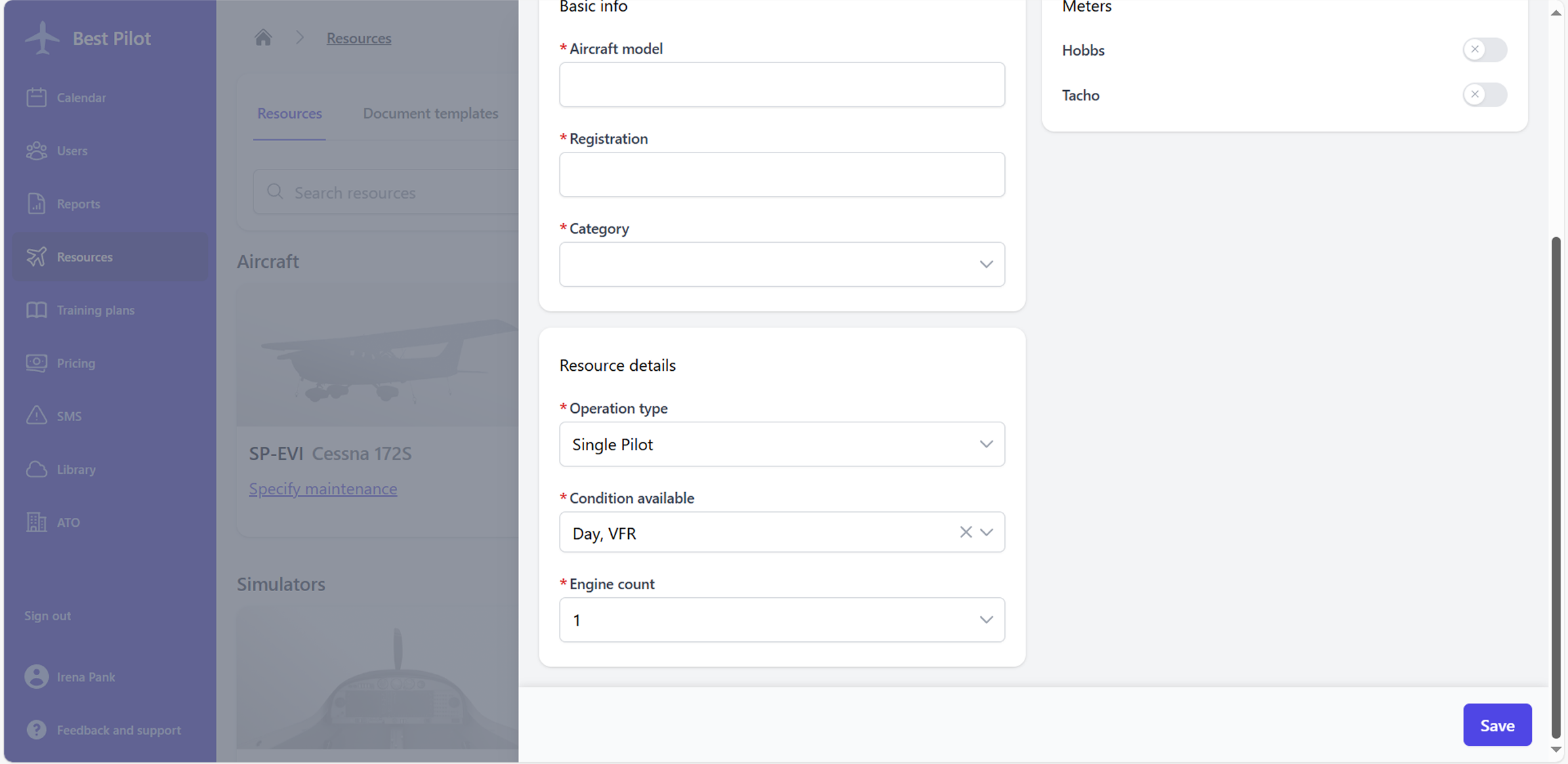
6. Fill out the form with basic information and details about the aircraft (mandatory).
- Aircraft model
- Registration
- Category
- Operation type
- Condition available
- Engine count
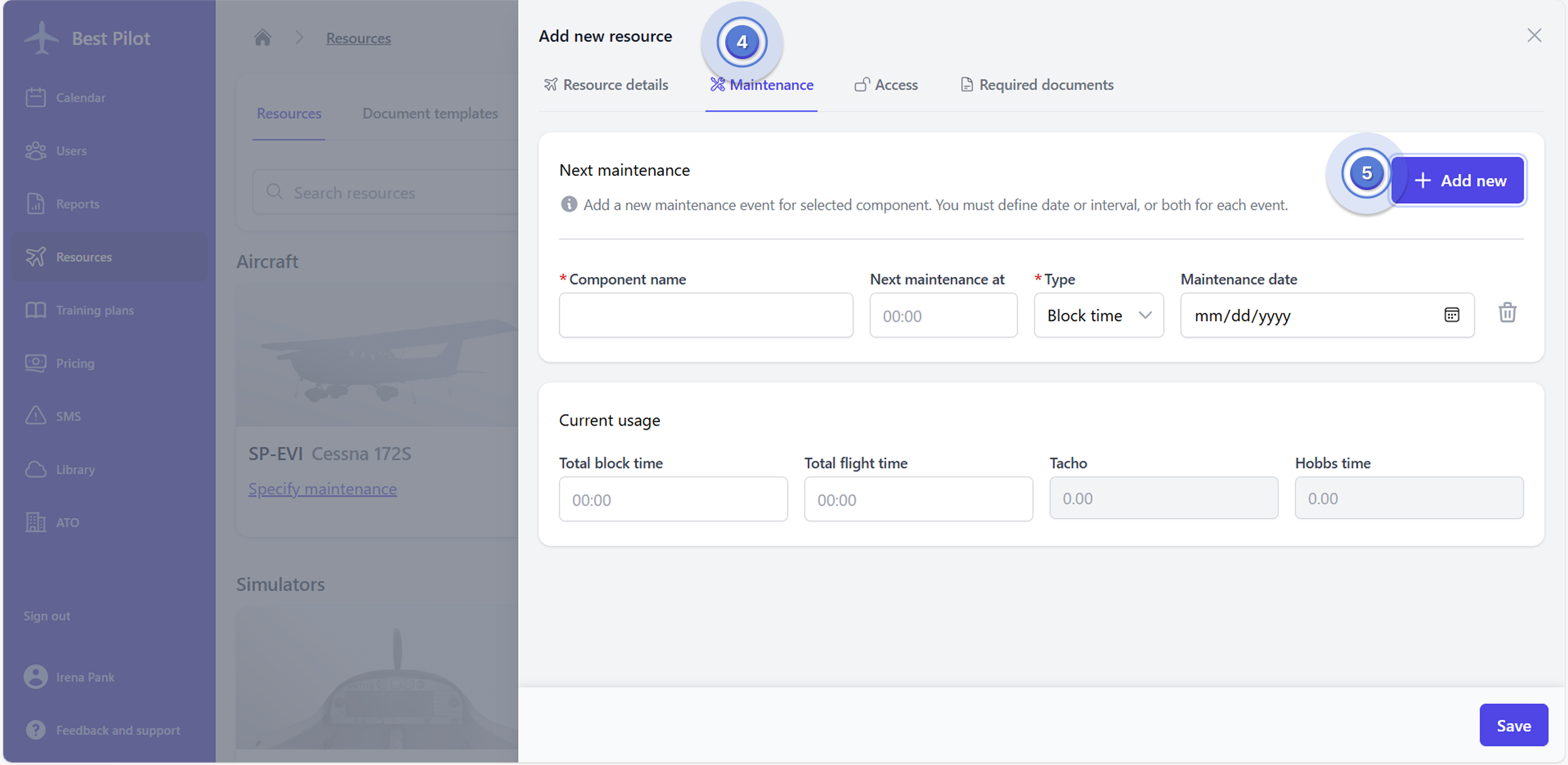
7. Additionally, you may specify the pricing and next maintenance details for the aircraft.
- Payment type (basis for calculating the charge)
- Flight time
- Tacho time
- Block time
- Hourly gross rate
- Tacho interval time (tacho time in which the maintenance should be conducted)
- Date of next maintenance
You can do that by choosing Maintenance (4) bookmark and selecting Add new button. (5)

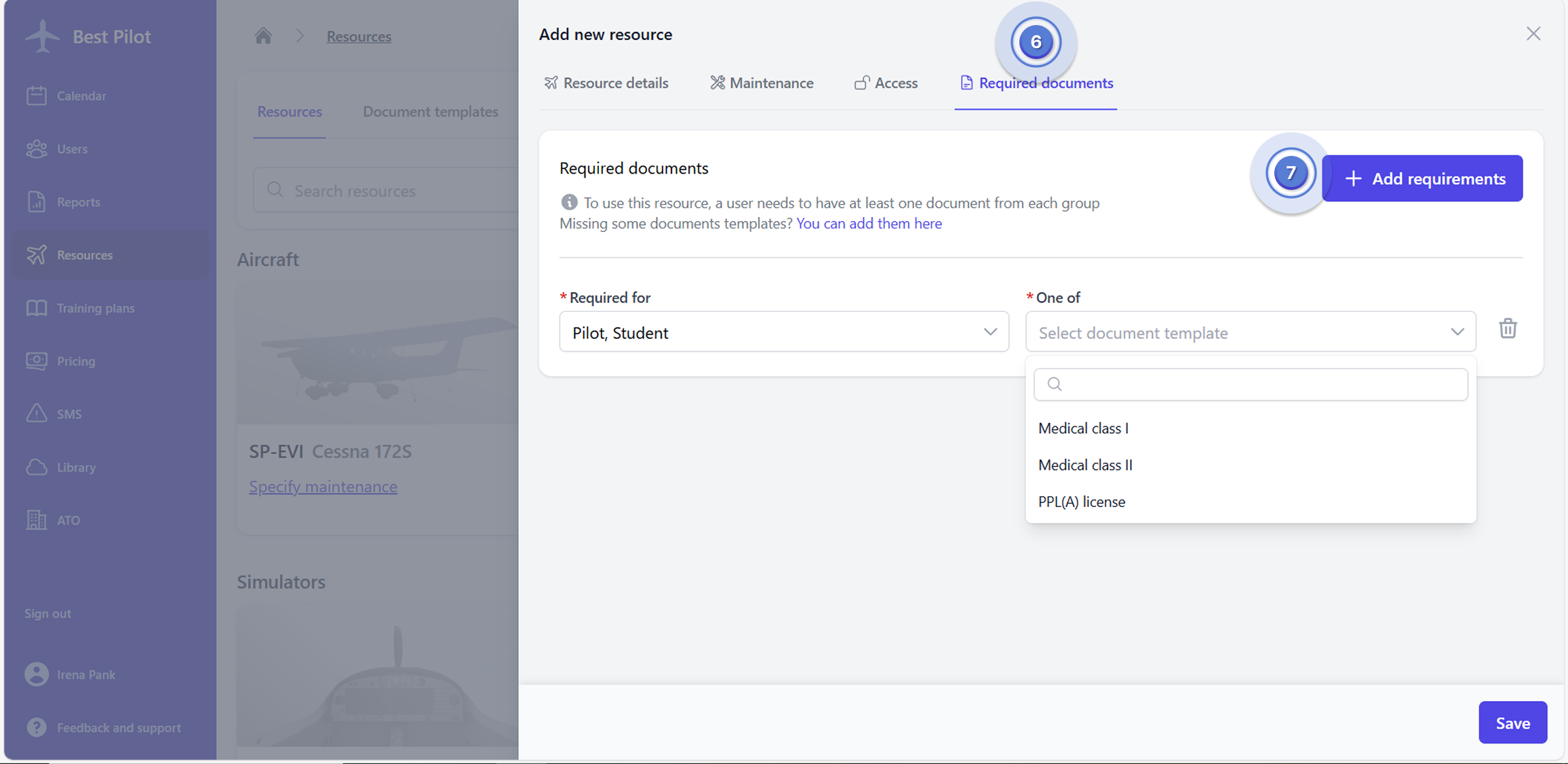

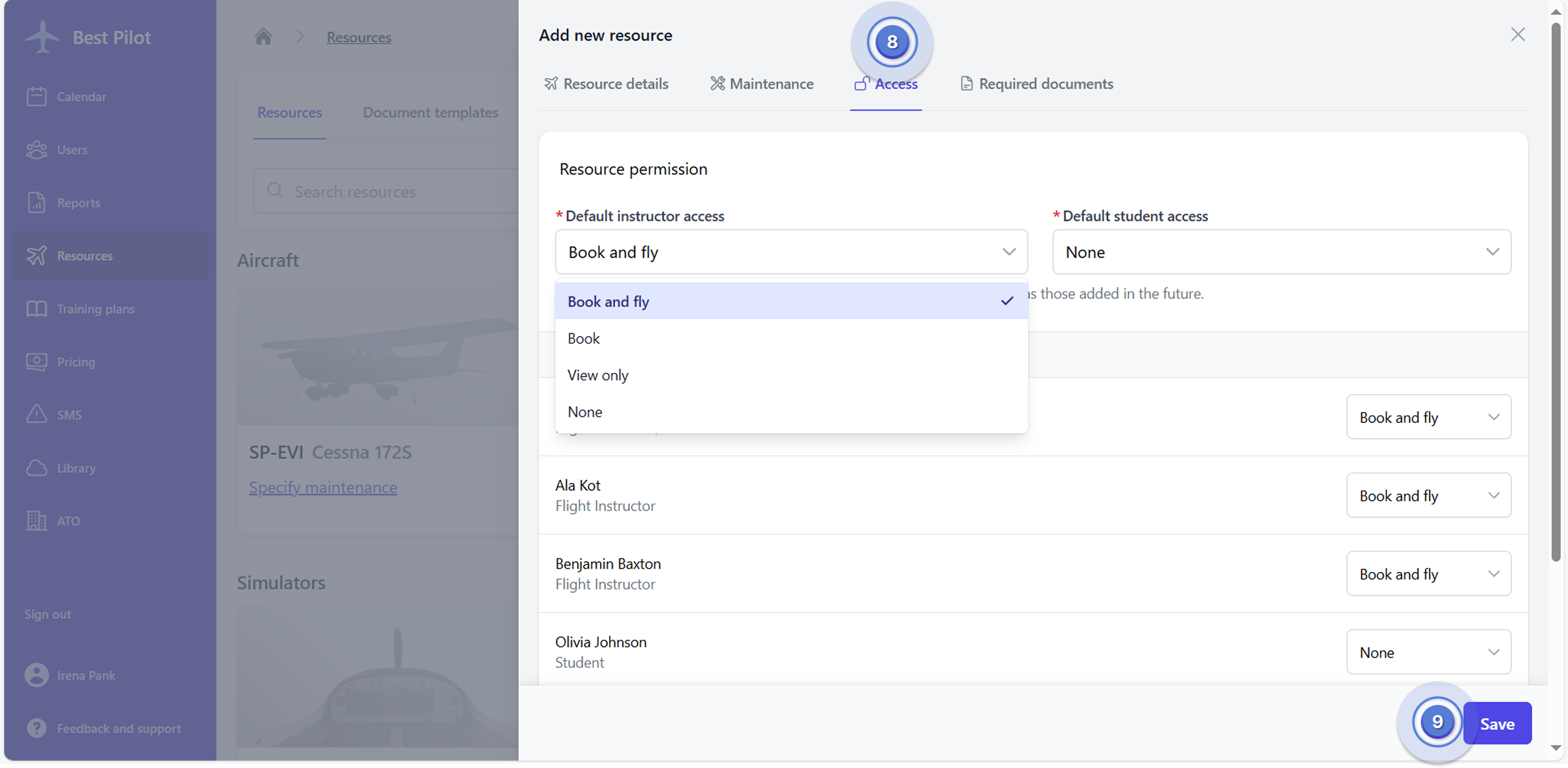
9. Moreover, you can adjust the Resource permission in Access bookmark. (8)
NOTE: By default, Administrators and Instructors can book and fly/use all of the resources.
10. If everything is set, you can select the Save button. (9)