
You can add your availability directly from the calendar so your school always knows when you are ready to fly, schedule lessons, or take exams.
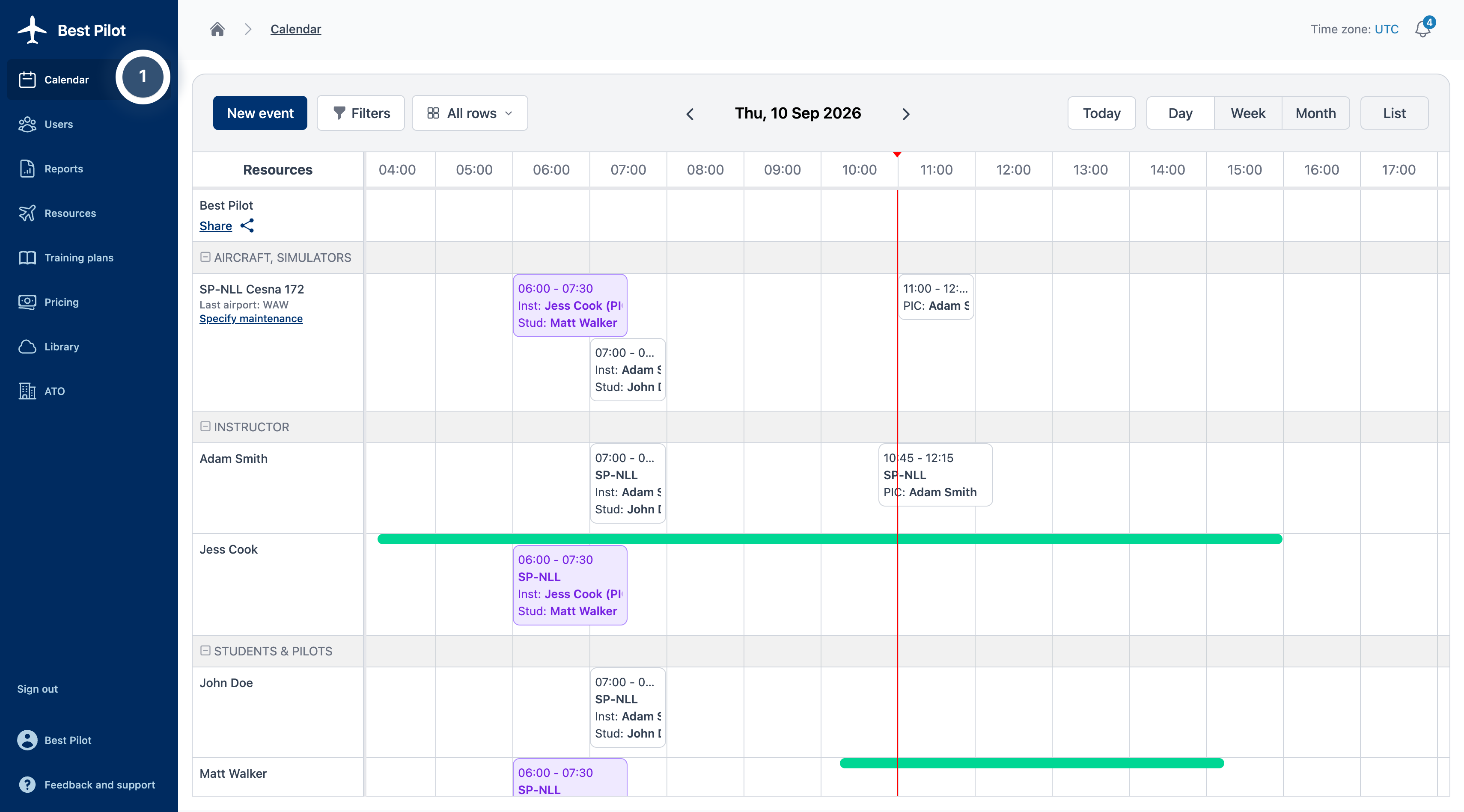
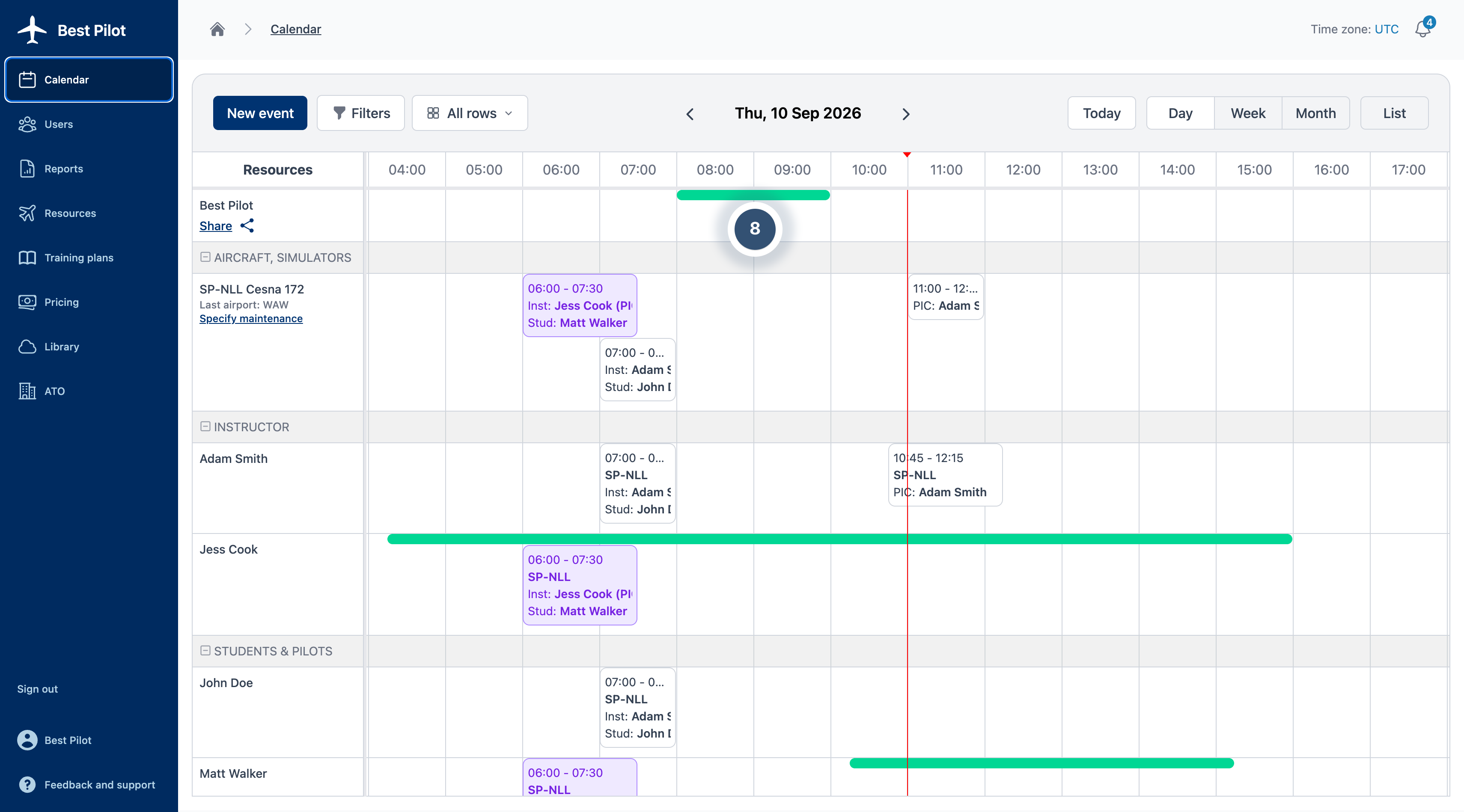
First, open the calendar (1).
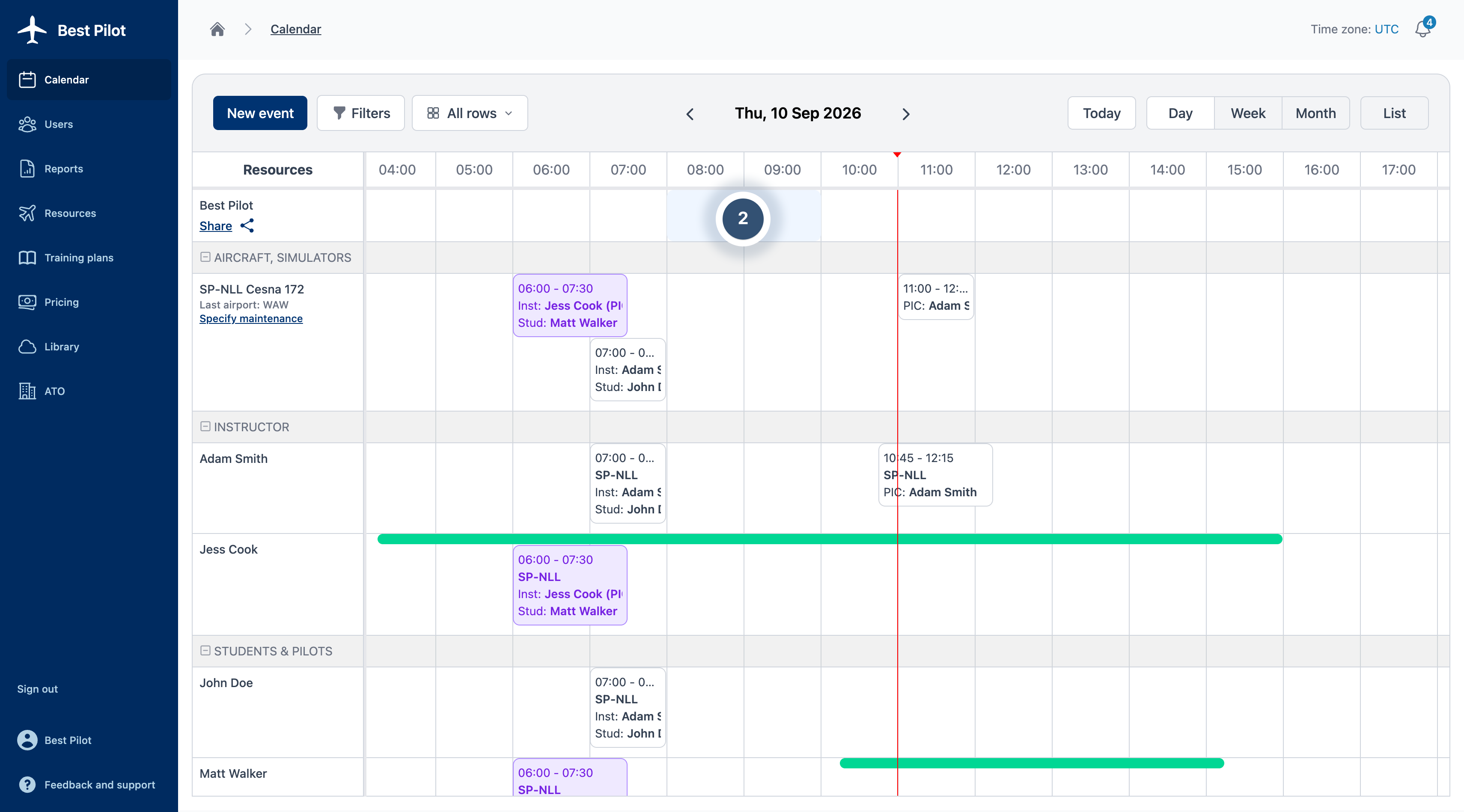
Then click or drag over the desired time slot to set your availability (2).
Then the Declare availability modal will open with the selected time slot pre-filled.
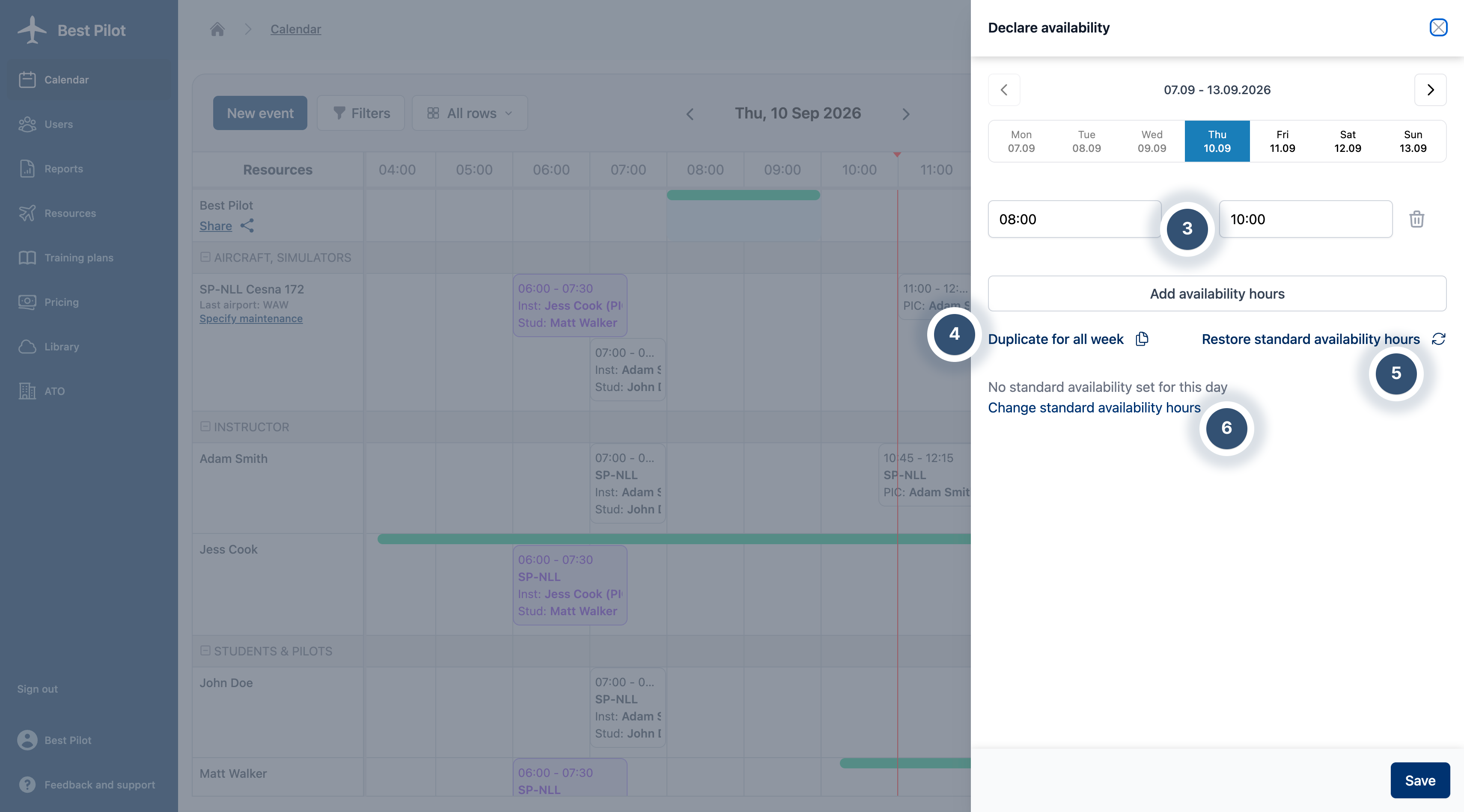
(3) Time range of availability. You can add additional time ranges if you have a break in between.
(4) Duplicate for all weeks – if you have recurring availability, so the system automatically copies this time range to the next week.
(5) Restore standard availability hours – click here to revert to the default availability settings you previously configured.
(6) Change standard availability hours – you will be redirected to your profile, where you can update your default availability settings (7).
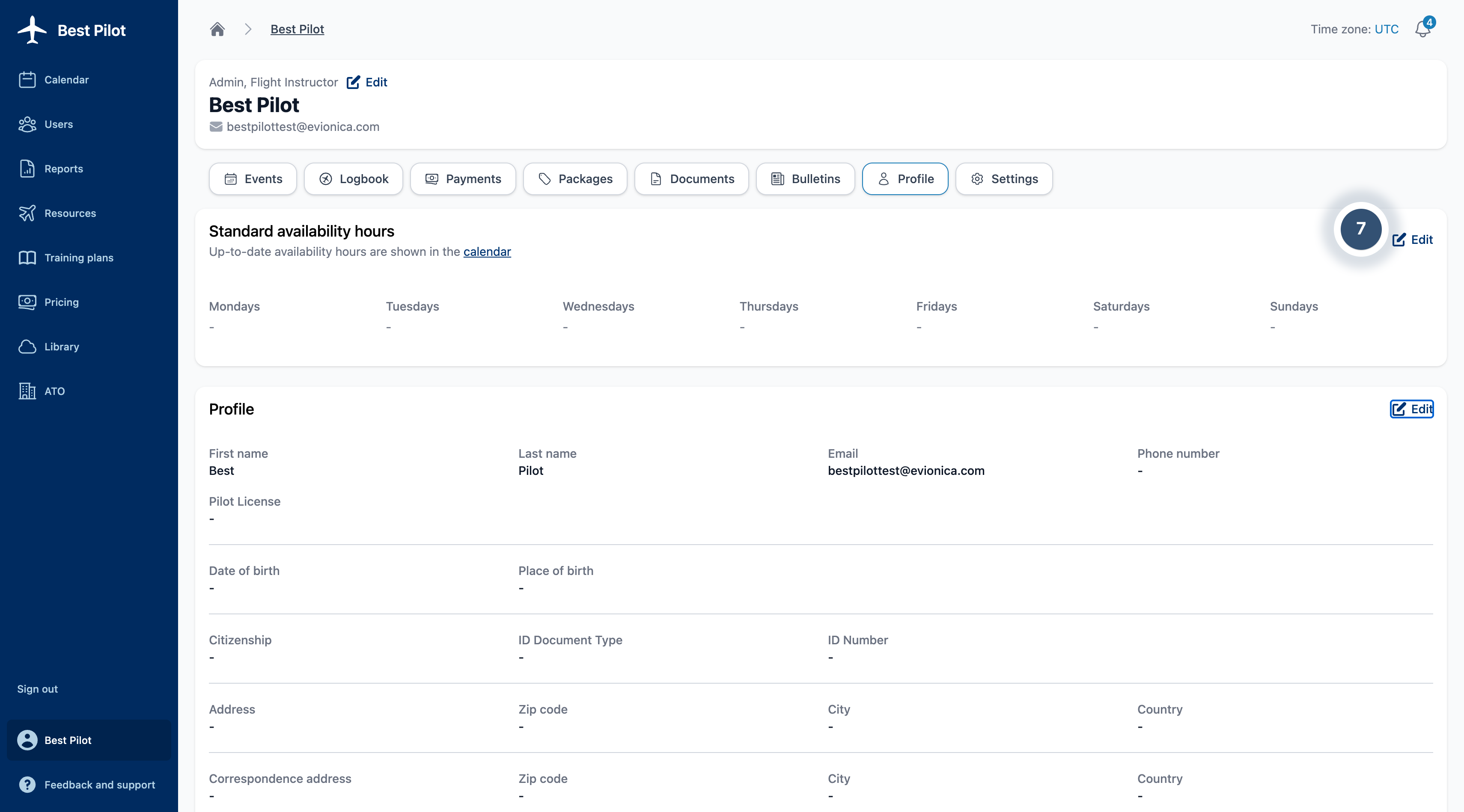
After setting your availability, a green indicator (8) will appear so everyone can clearly see when you are available.
Setting your availability will help your school efficiently plan trainings, simulator slots, and flights, ensuring aircraft, instructors, and resources are scheduled in line with your preferred times.