
-
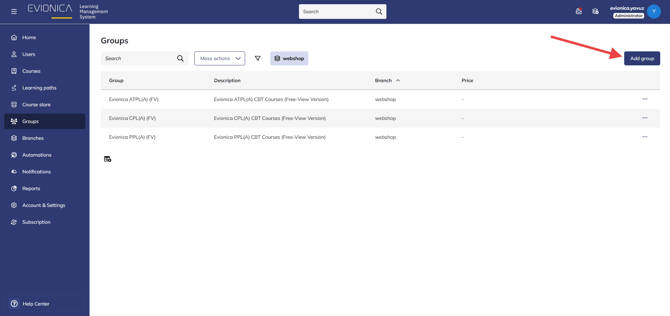
Sign in as an Administrator and navigate to Groups on the main dashboard. Click Add group to create a new group.
- Enter a name for the new group (e.g., "PPL Class 2026-01" or "Boeing 737 Type Rating Group"). You may also enter a description; this is optional.
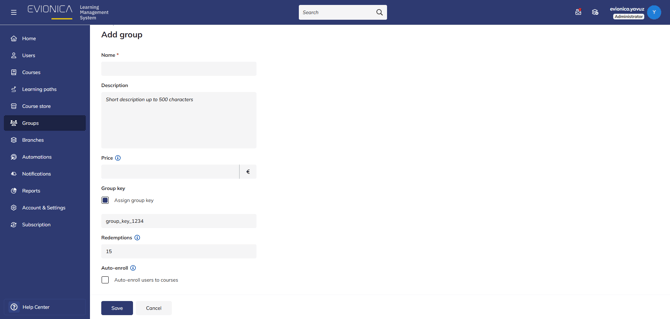
Note: If you "Assign group key", users in your branch will be able to join the group by entering this key in their their student profiles at the "Groups" section.
-
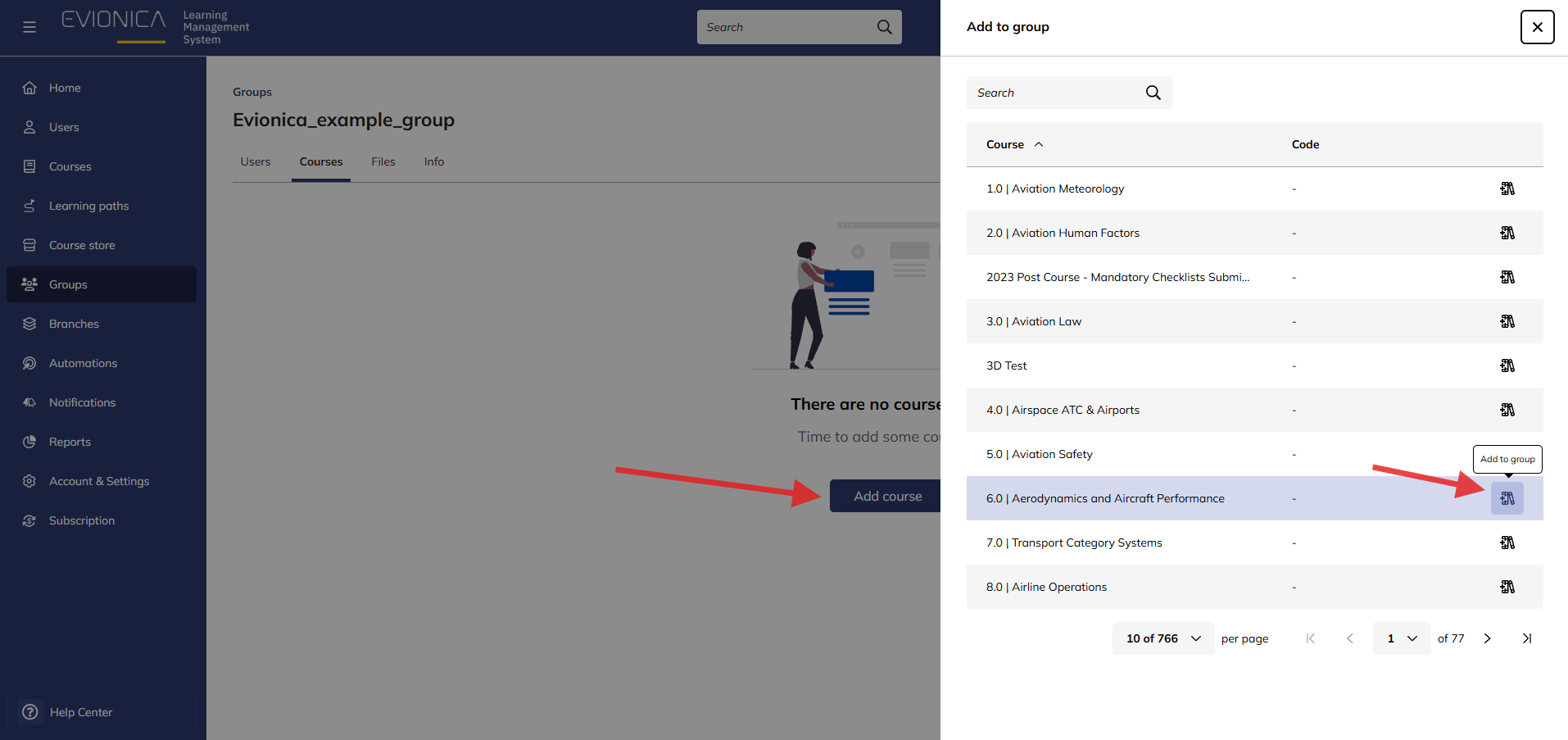
Go to the Courses tab of the new group. Then, click the "Add course" button. Select all the CBT subjects that this group needs to complete. Any user added to this group will be automatically enrolled in every course you select here.
-
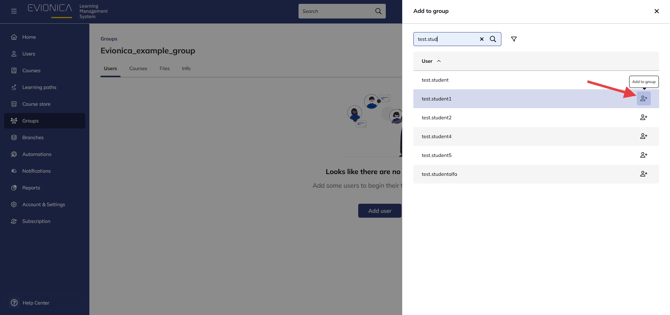
Switch to the Users tab of the group. Then, click the "Add user" button. Click the (+) next to the names of the students you want to add. As soon as they are added to the group, the LMS will push all the selected courses to their dashboards.
-
To manage the group later, you can return to the Groups menu at any time to add new students or add a new course to the entire class in one click.
Note: If you remove a course from a group, students will lose access to that course unless they were also enrolled in it manually. Always double-check if removing a course will affect active training records for your flight school.
Summary This guide explains how to use Groups to streamline the administration of flight training, allowing for the rapid enrollment of student cohorts into multiple subjects at once.