
1. Sign in to your Evionica LMS account as an Administrator and navigate to Users > Add user to start adding users individually.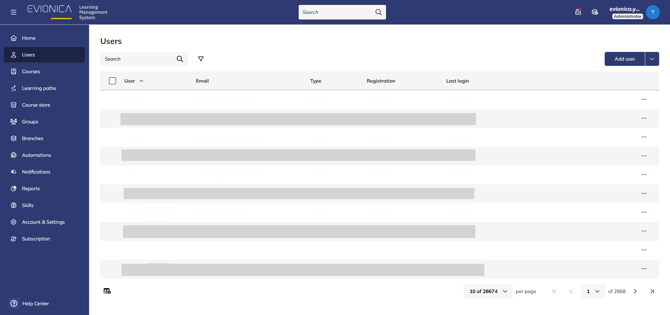
2. Complete all fields marked with * to provide the required user details. If you leave the password field blank, the system will generate a random password automatically.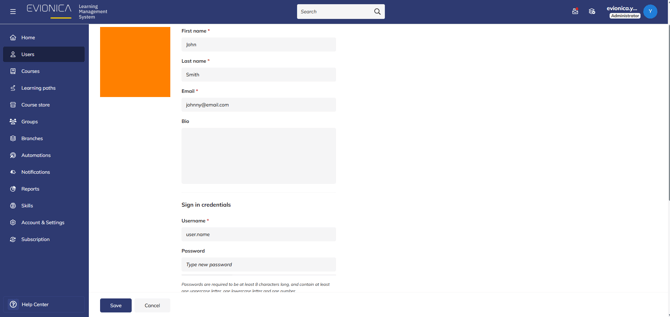
3. The user type (Student), location, and language are selected automatically, but you can adjust them as needed. Remember to set a deactivation date by ticking the checkbox and choosing a date from the pop-up calendar.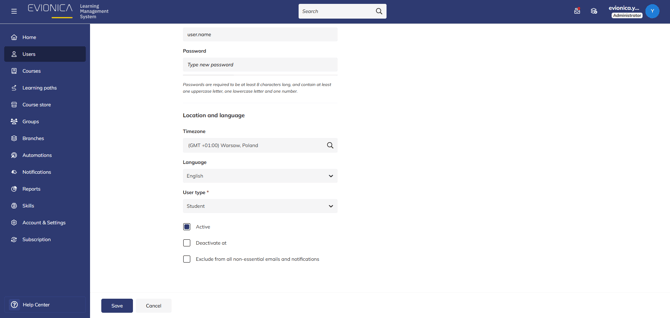
Beware that selecting the "Exclude from all non-essential emails and notifications" checkbox will result in the notifications including the activation notification with the credentials.
In such cases, the Administrator is responsible for sharing the credentials with the user.
Summary
This process explains how an Administrator can add a new user in Evionica LMS, configure their basic details and access settings, and ensure proper delivery of login credentials.