
1. Sign in to your Evionica LMS account as an Administrator and navigate to Users. Select the specific user you wish to enroll from the list.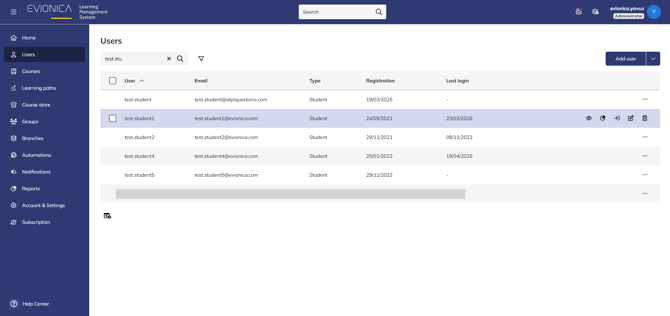
2. Courses tab will open as default within the user’s profile. Here, you will see a list of allcourses added in to the profile of the selected student.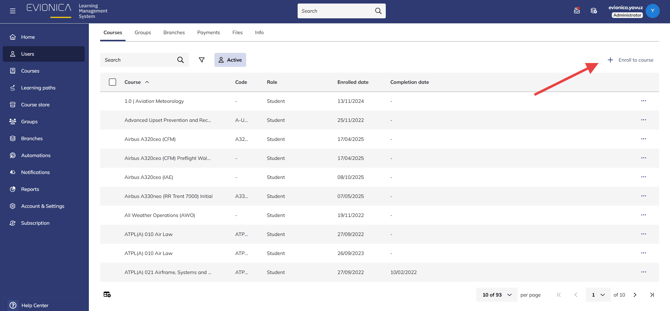
3. Click the + Eroll to course button on the right top corner. The course will immediately move to the user's active list.
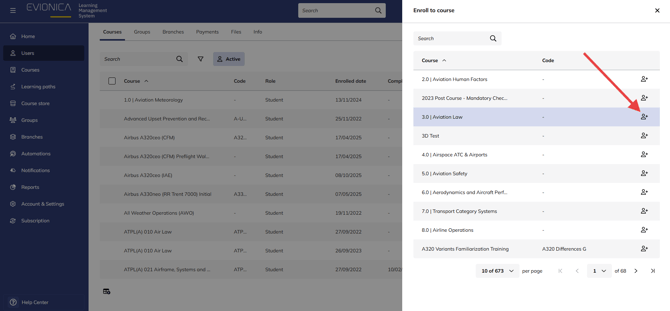
Note: If you are managing a flight school branch, you will be billed according to the licenses that are activated in your branch.
Note: Check our article about bulk enrollment if you are looking for a shortcut for adding students to multiple courses/subjects at a time.
Summary This process explains how to assign specific educational content to a user's profile, allowing them to begin their training immediately upon their next login.