
-
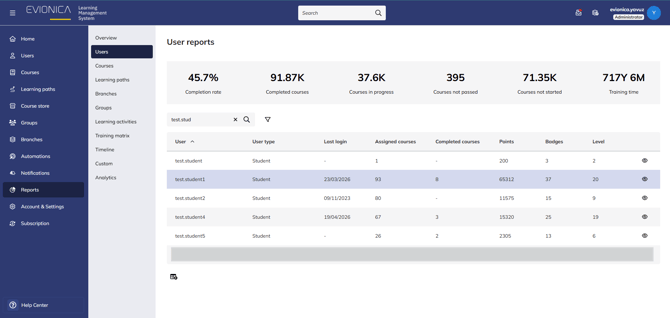
Sign in to your Evionica LMS account as an administrator and navigate to Reports > User reports. Select the specific user whose progress you need to modify.
-
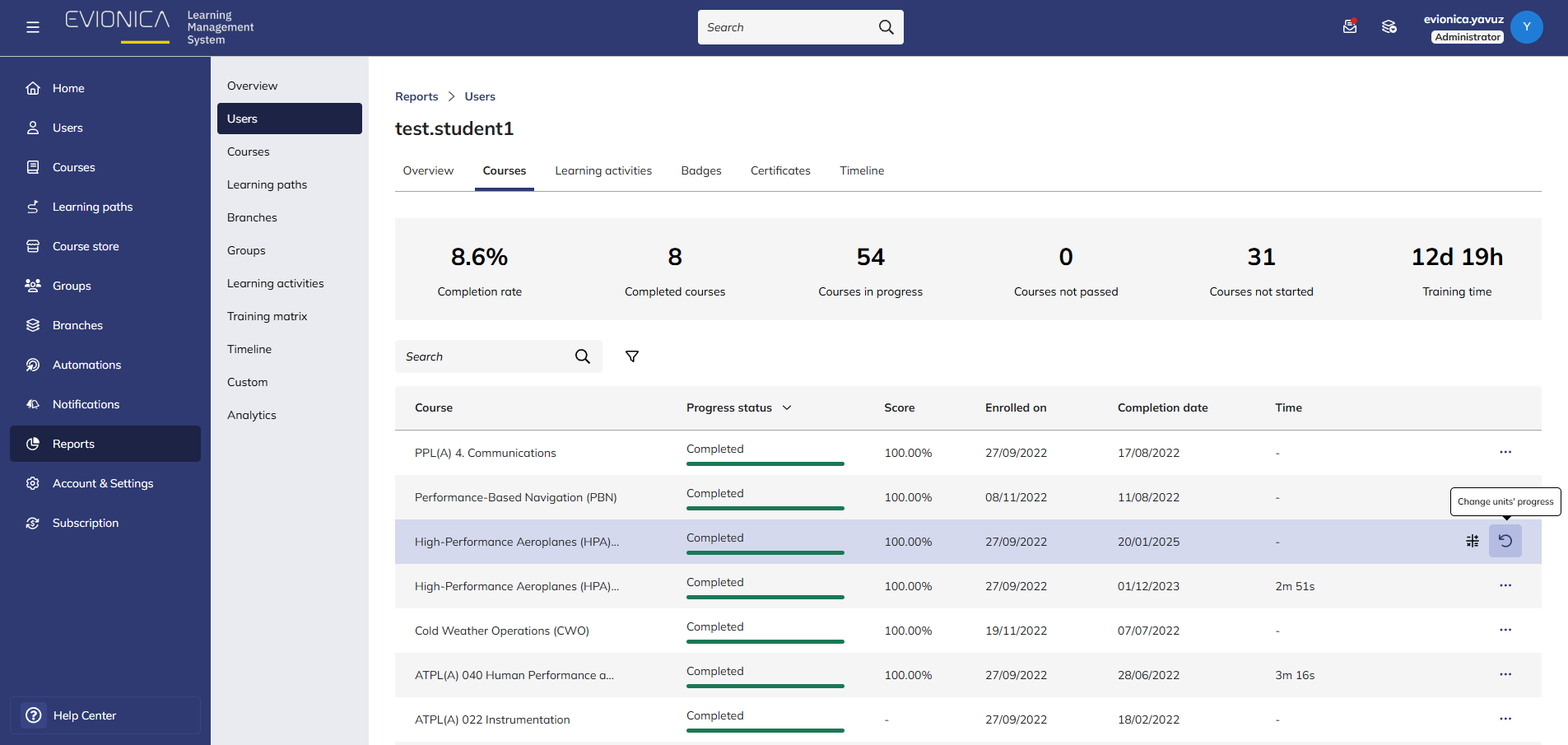
Scroll down to the Courses tab and select the "change units progress" button on the row of the course you want to change progress for the user.
-
To manually complete or reset a unit: Locate the unit in the list and look for the status icon and then, click the "Complete" or "Reset". This is useful if a student completed a lesson, but a technical error prevented the status from updating.
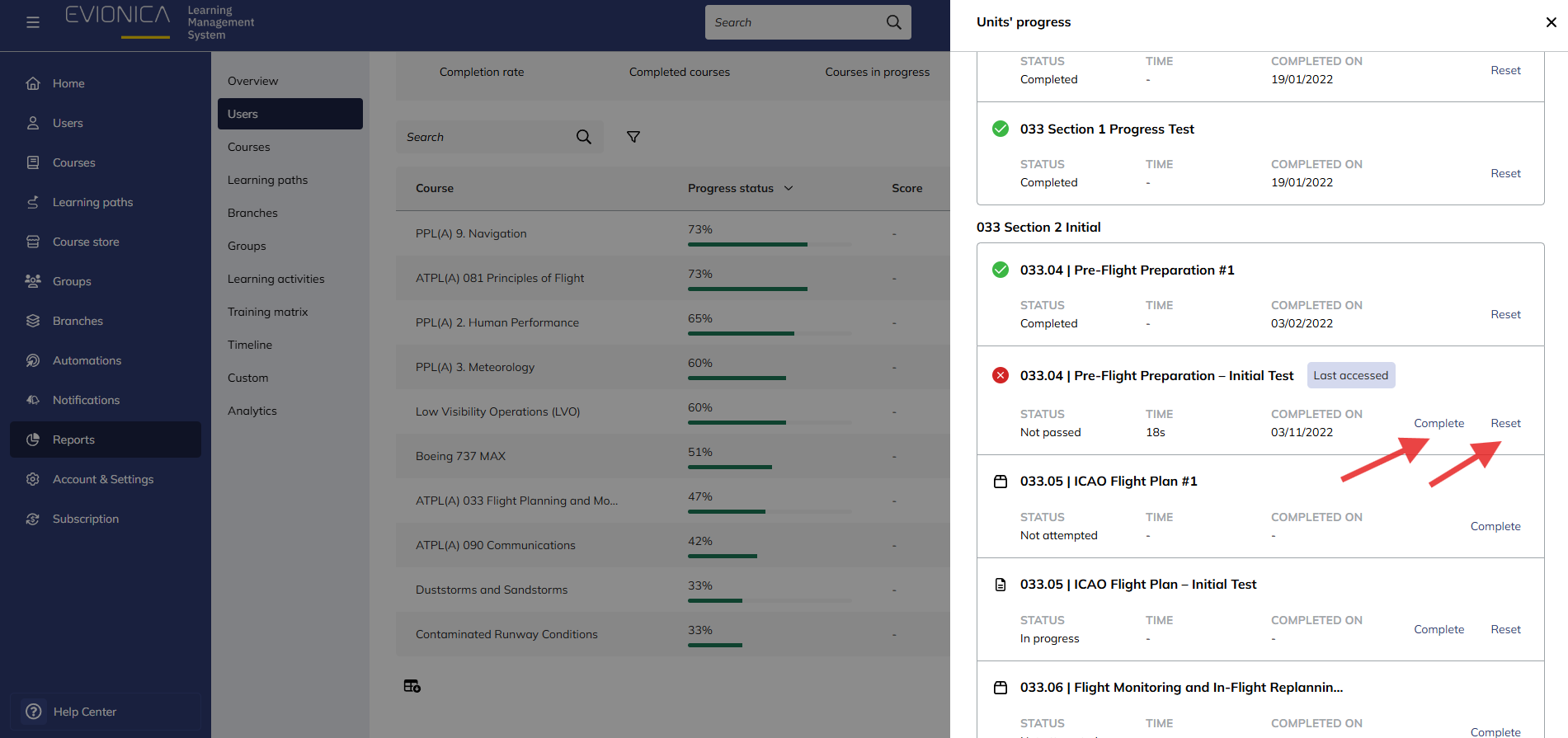
Note: Manually completing a unit will often set the score to 100% or the minimum passing grade by default. Be cautious when doing this for official exams, as it may affect the integrity of the student's final training records.
Summary
This process explains how an Administrator can bypass standard tracking to fix progress errors or force a student to retake specific training materials by resetting their data.