
1. If you are certain that your password is correct but are still experiencing issues logging in, try clearing your browser cache or logging in using a different browser. Please note that certain browser extensions can occasionally interfere with the login process.
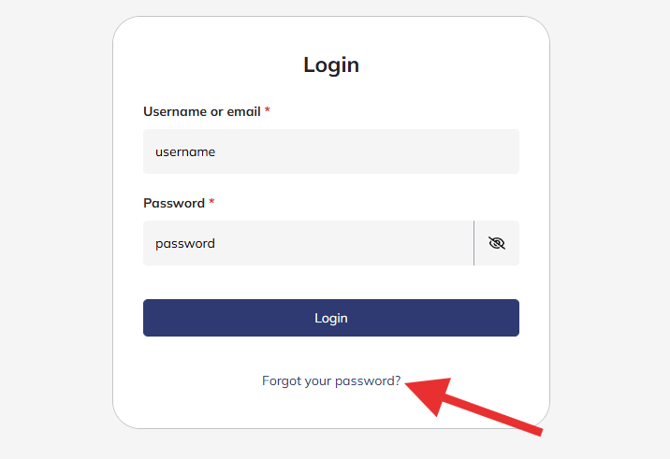
2. If you need to reset your password, you can easily do so from the login page. Navigate to the LMS login page and click the Forgot your password? hyperlink located directly below the Login button.
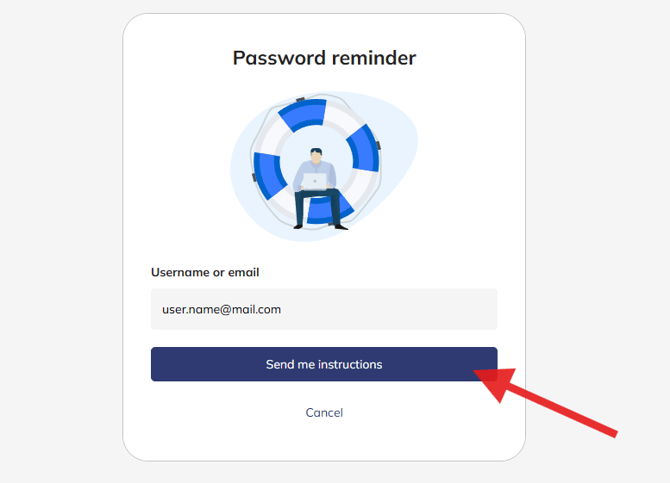
3. On the next screen, enter the email address associated with your LMS account, and select the Send me instructions button.
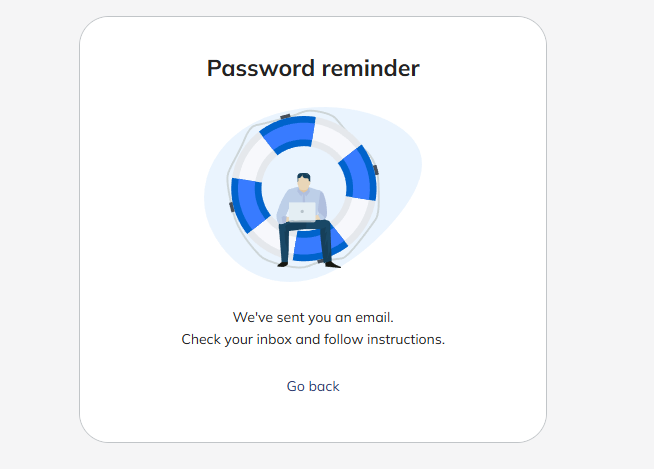
4. A confirmation screen will appear indicating that the reset instructions have been sent to your email. Check your inbox and follow those instructions to set your new password.
Summary
This process explains how a user can troubleshoot login issues, initiate a password reset within Evionica LMS, and successfully generate new account credentials.
2. If you need to reset your password, you can easily do so from the login page. Navigate to the LMS login page and click the Forgot your password? hyperlink located directly below the Login button.
3. On the next screen, enter the email address associated with your LMS account, and select the Send me instructions button.
4. A confirmation screen will appear indicating that the reset instructions have been sent to your email. Check your inbox and follow those instructions to set your new password.
Summary
This process explains how a user can troubleshoot login issues, initiate a password reset within Evionica LMS, and successfully generate new account credentials.