
-
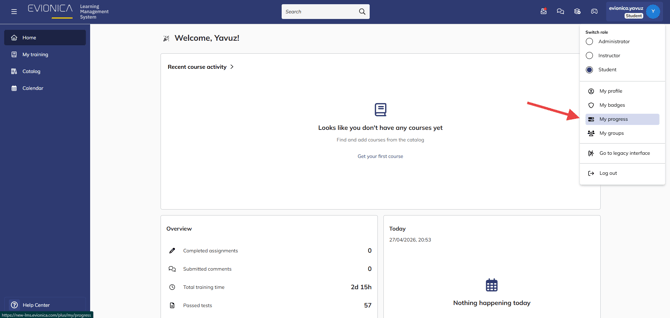
Sign in to your Evionica LMS account and stay on your Learner dashboard. Navigate to the My progress under your profile icon.
-
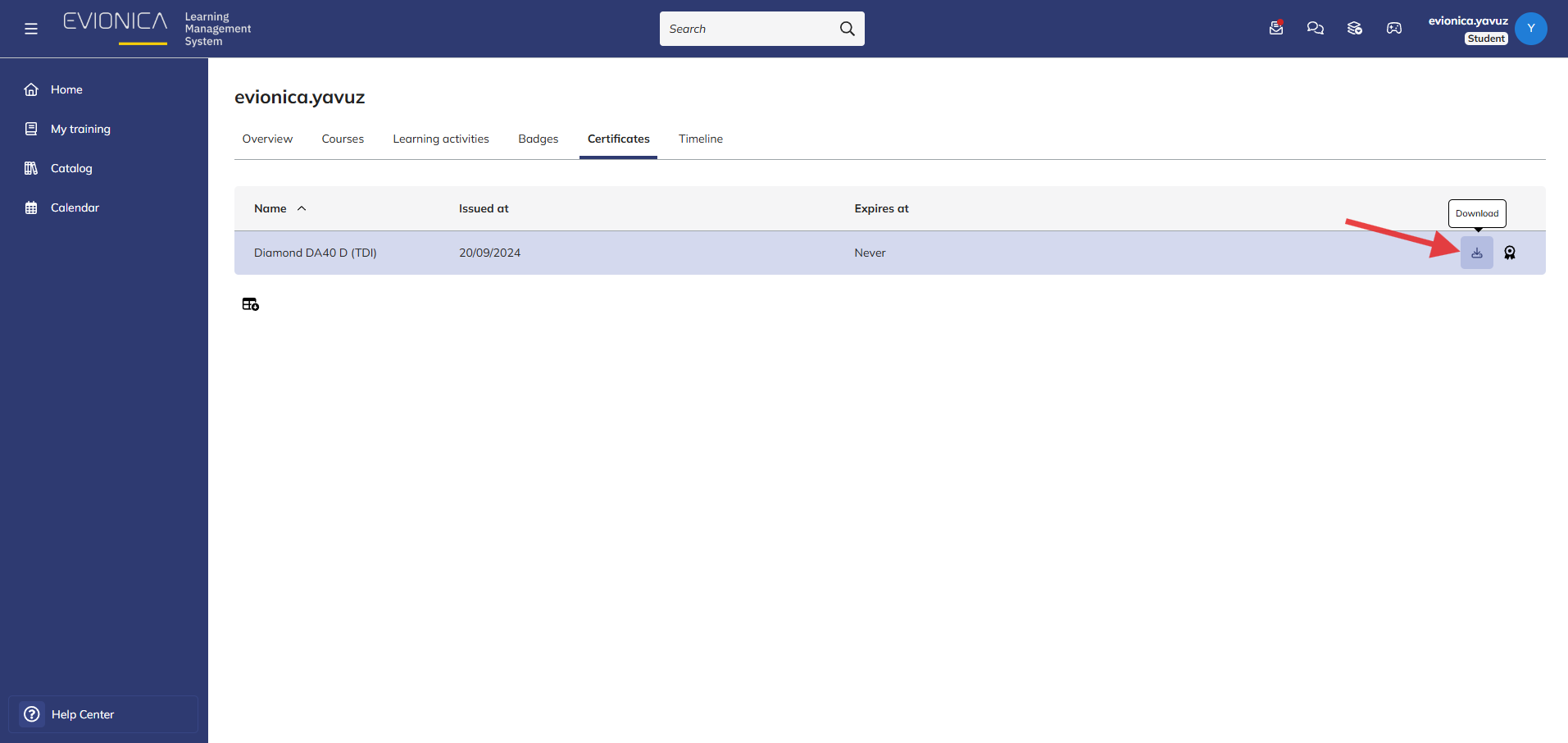
On "My progress" page, look for the Certificates section. Here, you will see a list of all the courses you have finished along with the date of completion.
-
Click on the certificate icon or the "Download" link next to the relevant course (e.g., PPL(A) - Theory) to save the PDF file to your device. You may also preview your certificate without downloading it.
Note: If you have completed a course but the certificate is not appearing, ensure that you have finished 100% of the units and passed the final test. Some courses require a minimum score (e.g., 75%) to trigger the certificate issuance.
Note: Certificates are only generated for courses where an "Award" or "Certification" was set by the Administrator. If you don't see a certificate for a specific training module, please contact your Flight School Administrator to verify if one is available.
Summary This guide explains the steps for a user to access their official training records and download completion certificates directly from their profile for compliance and personal record-keeping.