
Note: Only users with the Station Manager or Airline Manager roles can create new accounts.
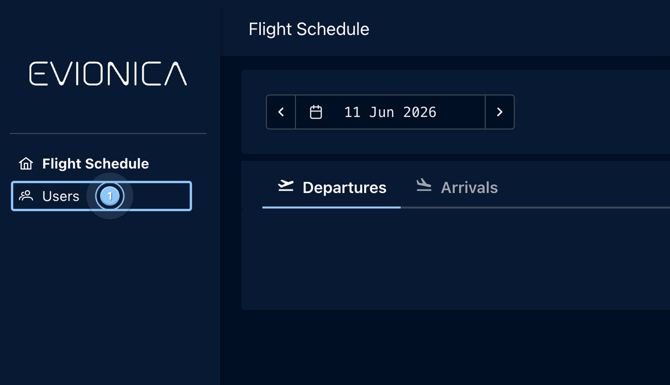
In order to create a new user, first you need to access the Users panel by:
( 1 ) selecting it on the left menu bar.
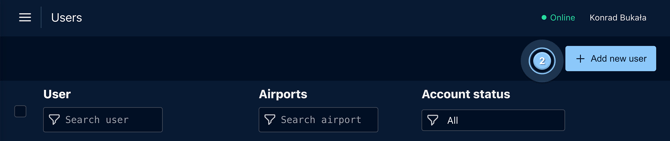
( 2 ) Click on +Add new user in the top right
A Add new user window will appear. Fill in the data:
-
( 3 ) Username - usually in the format f.last (Firstname Lastname)
-
( 4 ) First name
- ( 5 ) Last name
- ( 6 ) Email address
- ( 7 ) Phone number in the specified format:
- Note 1 - if both a phone number and email address are entered, the activation message will be sent to the phone number.
- Note 2 - A single email address can only be used for one account, whereas a single phone number can be used for multiple accounts.
- ( 8 ) Target airport
- If you would like the user to have access to all stations, type in XXX.
- If you want the user to have access to multiple stations, type them in separated by a comma ( , ), e.g. "WAW, KRK"
- ( 9 ) Roles - Load Controller is the standard role for users; other roles are described in the appropriate Knowledge Base article.
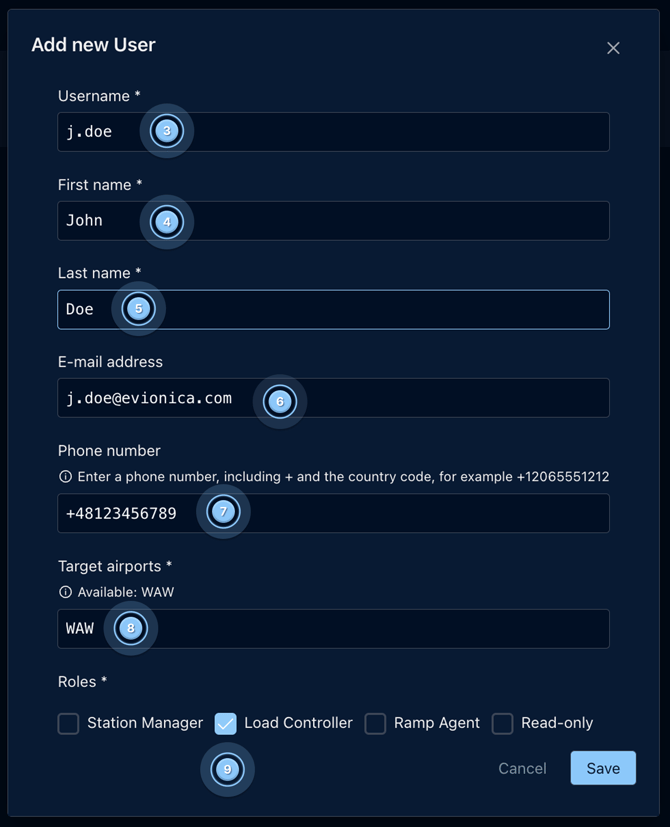
Once the data is set, click on Save
Once saved, the activation message will be sent to the appropriate email address or phone number. It is required to activate the account within 24 hours of receiving the invitational e-mail.
The user will be initially created with a placeholder station YYY, where they can create the test and examination loadsheets. The details regarding the user acceptance procedure are described in the next article.