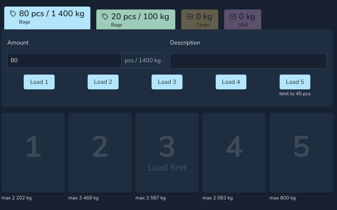
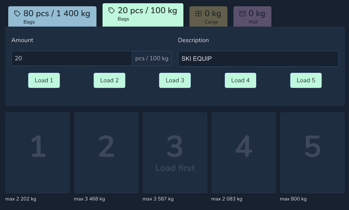
The Split total functionality in the Evionica W&B solution allows Load Control agents to better manage deadload and split them into multiple load entries in cases of non-standard payloads with known weights (e.g. ski equipment, wheelchairs, sport equipment).
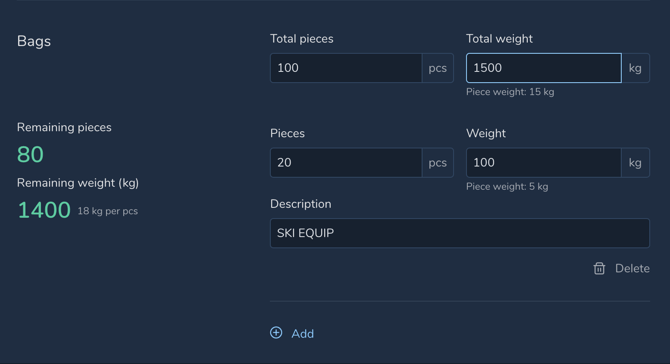
The splitting action can be performed on the Payload tab and can be accessed only in case of passenger bulk hold operations. Before the splitting, the user defines the overall baggage values for the flight.
Remaining Values
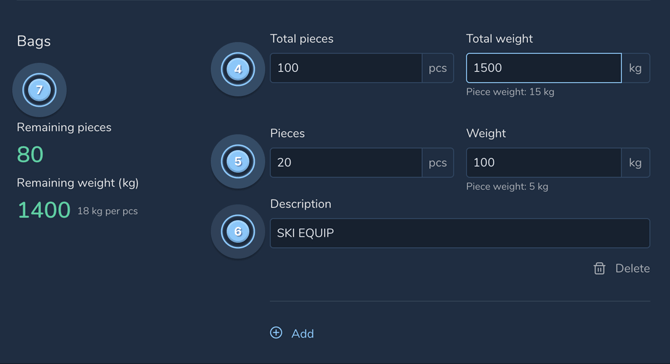
The system displays the remaining baggage that has not yet been assigned to any load entry:
-
Remaining pieces
-
Remaining weight (kg)
Initially, these values match the totals (100 pieces and 1500 kg). As entries are added, the remaining values decrease accordingly.
Creating Baggage Entries
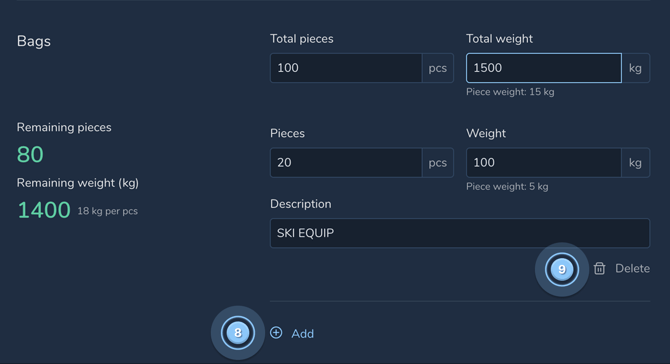
Users can split the baggage into multiple entries using the Add button. For each entry, the following fields are available:
-
Pieces – number of baggage items assigned to the entry.
-
Weight (kg) – total weight assigned to the entry.
-
Description – optional text describing the baggage group (e.g., container location, compartment, or remarks).
Automatic Calculations and Validation
-
When pieces are entered, the system may automatically calculate the weight using the defined piece weight.
-
The sum of all entry pieces cannot exceed the Total pieces.
-
The sum of all entry weights cannot exceed the Total weight.
-
After each entry is added, the Remaining pieces and Remaining weight values update automatically.
Managing Entries
-
Users can remove an entry using the Delete option.
-
Removing an entry restores the corresponding pieces and weight back to the remaining values.
To split the total baggage, please:
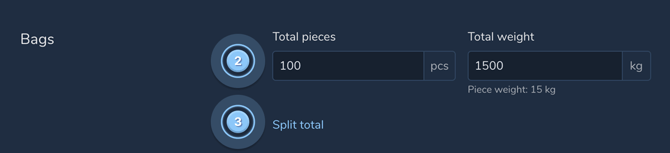
- Navigate to the Payload tab ( 1 ), add Bag pieces and weight ( 2 ) and click on Split total ( 3 ).

- Type in the Pieces ( 4 ), their total Weight ( 5 ) and the description ( 6 ). Notice the Remaining pieces and weight being automatically updated on the left ( 7 ).
- If you wish to add more categories, click on the + Add ( 8 ). If you wish to remove a category, click on Delete ( 9 ).
The created categories can be managed separately on the Payload tab.