
The Split functionality allows you to divide an existing load entry directly on the Load Planning tab.
You can use it when you need to move part of an existing entry into a separate load entry, for example to distribute baggage between compartments or to separate items with a specific weight.
When using Split, you can either let the system calculate the weight based on the current average weight per piece or enter a different weight manually.
How does it work?
To split an existing load entry:
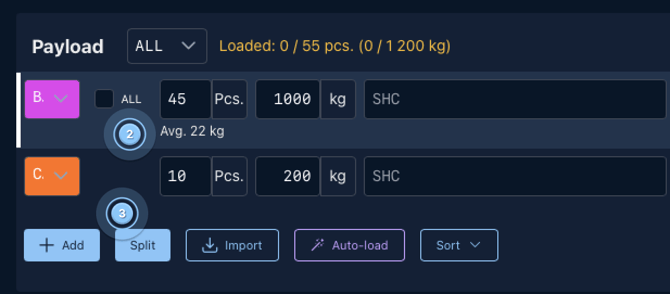
1. Go to the Load Planning tab ( 1 ), Select the load entry you want to split ( 2 ), Click Split ( 3 ).

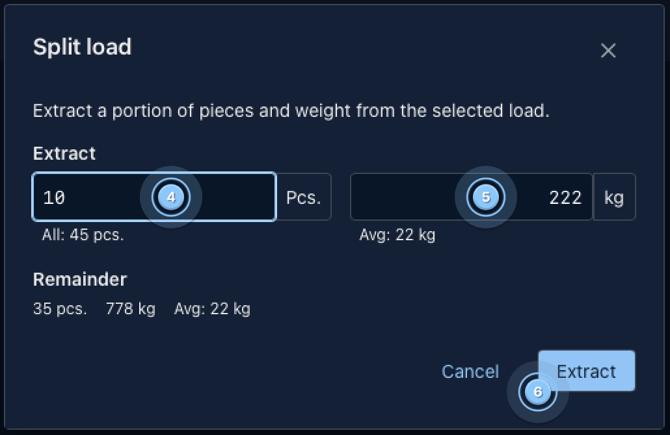
2. Enter the number of pieces you want to separate ( 4 ) and click Extract ( 6 )
Use the weight calculated by the system or enter a custom weight ( 5 ) for the selected pieces.
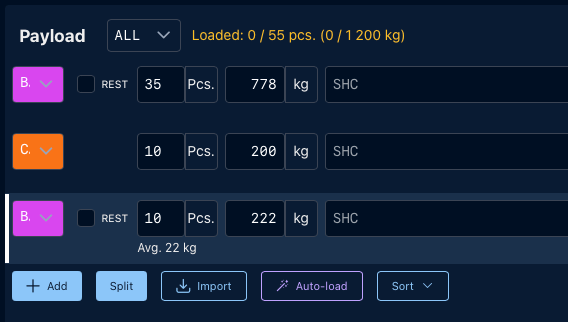
The new entry can then be handled separately in Load Planning.
Why use "Split" instead of changing the values manually?
If you need to separate some pieces from an existing load entry, we recommend using Split instead of manually changing the number of pieces and weight.
Changing these values manually can unintentionally change the average baggage weight per piece.
With Split, you can clearly choose what you want to do:
- Keep the current average weight and let the system calculate the weight of the selected pieces.
- Use a different weight when you know the actual weight of the items being separated.
This gives you better control over the load entries while keeping the pieces and weights correctly accounted for in Load Planning.
If a comment is added to the split load entry, the entry will not be updated during subsequent updates from the DCS integration.
This can be useful when the split entry has been adjusted manually and should remain unchanged regardless of later DCS updates.